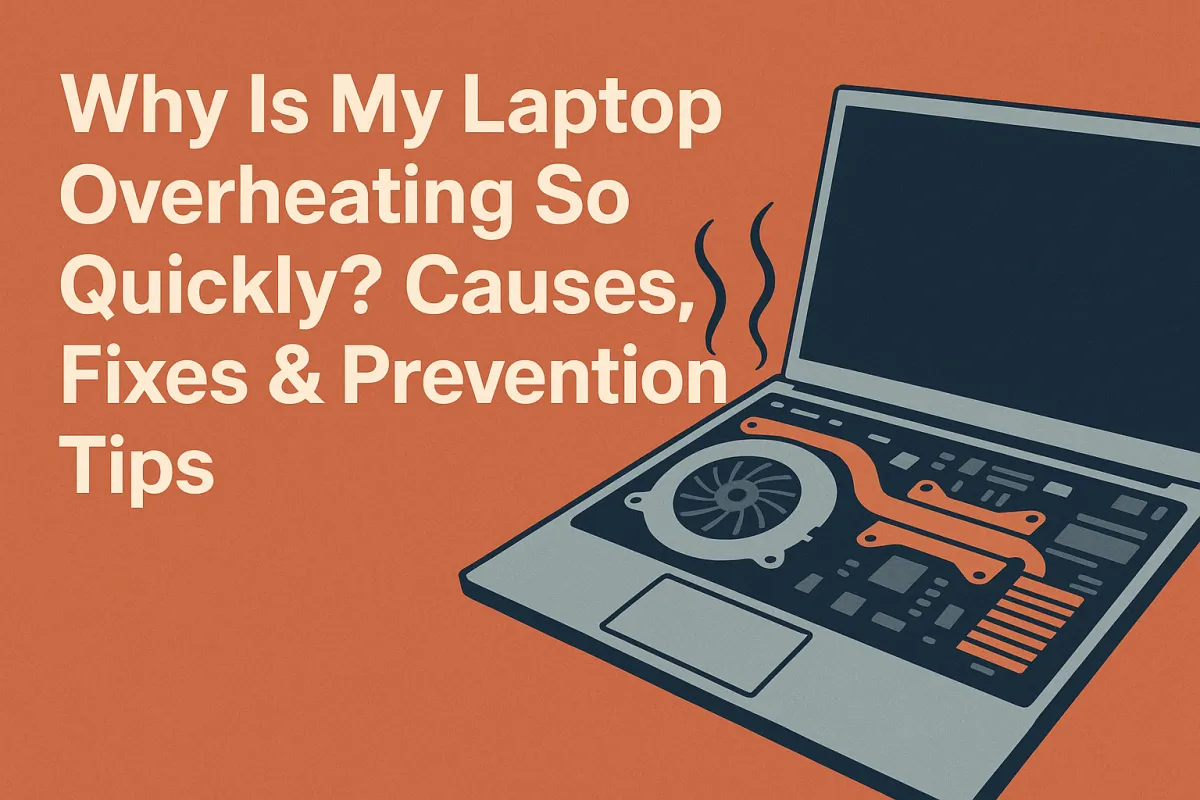
Why Is My Laptop Overheating So Quickly? — Causes, Fixes & Prevention Tips
Written By: Michael Torres
You open your laptop, start a simple task—and within minutes it’s hot enough to bake cookies. Sound familiar? Laptop overheating is a frustrating issue that affects performance, component lifespan, and user comfort.
I’m Michael Torres, a tech troubleshooter with years of experience diagnosing and repairing devices. In this guide, I’ll walk you through the real causes behind rapid laptop overheating and share actionable solutions and preventive tips (no fluff, just results).
This content is intended as technical guidance—not a replacement for professional repair services—but it draws from manufacturer recommendations and hardware best practices (EEAT-aligned).
Topic Overview — Why Laptops Overheat
Laptops generate heat by nature: CPUs, GPUs, and other components produce thermal energy during operation. A good cooling system (fans, heat pipes, thermal paste, ventilation) is meant to manage this. But when the balance is disrupted, overheating happens.
Some key stats and observations:
A study by Intel shows that modern CPUs will aggressively throttle or shut down when die temperatures exceed safe thresholds (typically 90–100 °C) to prevent hardware damage.
Excessive heat shortens component lifespan (e.g., SSD, battery circuits) and may cause unexpected shutdowns or performance throttling.
Because laptops are compact, airflow is already constrained, making them more vulnerable to overheating compared to desktops.
Common symptoms of overheating include:
Fans running at full speed continuously
Sudden shutdowns or crashes
Performance drops (thermal throttling)
Hot palm rest areas, hot bottom chassis
Given the potential for hardware damage, it’s worth identifying the root causes and fixing them early.
Common Causes of Rapid Overheating
Here are the major culprits that make a laptop heat up too quickly:
1. Dust, debris, and clogged vents
Over time, dust accumulates inside the laptop, especially in the fan and vent areas, restricting airflow. This is one of the most frequent causes of thermal issues.
2. Fan failure or malfunction
If one or more cooling fans are failing (bearing wear, motor issues) or not spinning fast enough, heat can’t be expelled efficiently.
3. Degraded or poor-quality thermal paste
Thermal paste conducts heat between the CPU/GPU and heat sink. If it dries out, is applied poorly, or is low-quality, thermal transfer suffers.
4. High ambient temperature or poor ventilation
Using a laptop on soft surfaces (bed, cushion) blocks airflow vents. Room temperature also matters: if your workspace is very hot, the cooling system has less margin.
5. Heavy workloads or resource spikes
Running CPU- or GPU-intensive apps (gaming, video editing, multiple virtual machines) pushes the hardware to its limits, generating more heat than idle states.
6. Malware, background processes, or inefficient software
A runaway process (virus, crypto-miner, bugged software) can drive CPU/GPU usage to maximum, overheating the system.
7. Outdated BIOS/firmware or poor power settings
Sometimes, laptops ship with conservative fan curves or thermal limits. An outdated BIOS or improper power profile can cause the system to delay fan ramp-up.
8. Hardware defect or poor design
Occasionally, a laptop model has a design flaw (e.g., insufficient heat pipe coverage, inadequate cooling layout). Or a sensor may be malfunctioning, misreporting temperatures.
How to Fix & Prevent Laptop Overheating
Now, let’s get practical. Here’s a step-by-step guide to diagnosing, fixing, and preventing overheating.
Step 1: Monitor and Diagnose Temperatures
Use tools like HWMonitor, Core Temp, or SpeedFan to track CPU, GPU, and ambient temps.
Check fan speeds and which components are hottest.
Look for anomalies: e.g., CPU at 100% load while doing nothing.
Step 2: Clean the internals
Power off, unplug, remove the battery (if possible).
Open the bottom cover carefully.
Use compressed air or a soft brush to remove dust from fans, heat sink, vents.
Blow in from the intake and exhaust sides to dislodge debris.
Step 3: Replace or reapply thermal paste
Remove the heat sink, clean the old paste off the CPU/GPU and the sink with isopropyl alcohol (≥ 90 %).
Apply a small amount (a grain or pea-size) of high-quality thermal paste and reattach the heat sink evenly.
Step 4: Verify and repair fans
Check if the fans spin up under load.
If a fan is not spinning or making grinding noises, replace it with a compatible unit.
Step 5: Adjust power and thermal settings
In Windows: go to Power Options → Advanced settings → choose a balanced or power-saving profile.
Use manufacturer utilities (e.g., Dell Power Manager, ASUS Armoury Crate) to set a more aggressive fan curve.
Update BIOS/firmware to the latest version (check manufacturer site for patches).
Step 6: Use a cooling pad or elevate the laptop
A laptop cooling pad with additional fans helps improve airflow under the machine.
Alternatively, use a laptop stand or risers to create space beneath for ventilation.
Step 7: Manage workloads and background processes
Check Task Manager (Windows) or Activity Monitor (Mac) for high-CPU processes.
Uninstall or disable resource-heavy software you don’t need.
Run antivirus scans to rule out malicious or crypto-mining programs.
Step 8: Ensure good ambient conditions
Work in a well-ventilated, cool room.
Avoid soft surfaces (bed, couch) that block vents. Use a hard, flat surface.
Avoid direct sunlight or heat sources near your setup.
Summary & Final Thoughts
Laptop overheating is a common but fixable problem. The key is to treat the underlying cause — not just the symptom. Start with cleaning and diagnosing; then move to software settings, cooling aids, and finally, hardware fixes if needed.
If you’re not confident opening your laptop or replacing parts, seek professional repair services. At Techy Charlestown, our repair experts can help you safely clean, upgrade thermal systems, or diagnose underlying defects. (You can learn about our repair services on our Repair a Device page.)
FAQs
Q1: Will a cooling pad stop my laptop from overheating completely?
A1: It helps reduce temperatures by improving airflow, but it doesn’t replace internal maintenance (cleaning, thermal paste, fan condition). Use it as a supportive tool rather than a sole fix.
Q2: How often should I reapply thermal paste?
A2: Generally every 2–3 years is a good rule of thumb—or sooner if you see temperature creeping upward or if you disassemble the laptop for other upgrades.
Disclaimer:
This article provides general technical guidance and is not a substitute for professional repair services. Always back up your data before attempting hardware or firmware changes. Proceed at your own risk.


