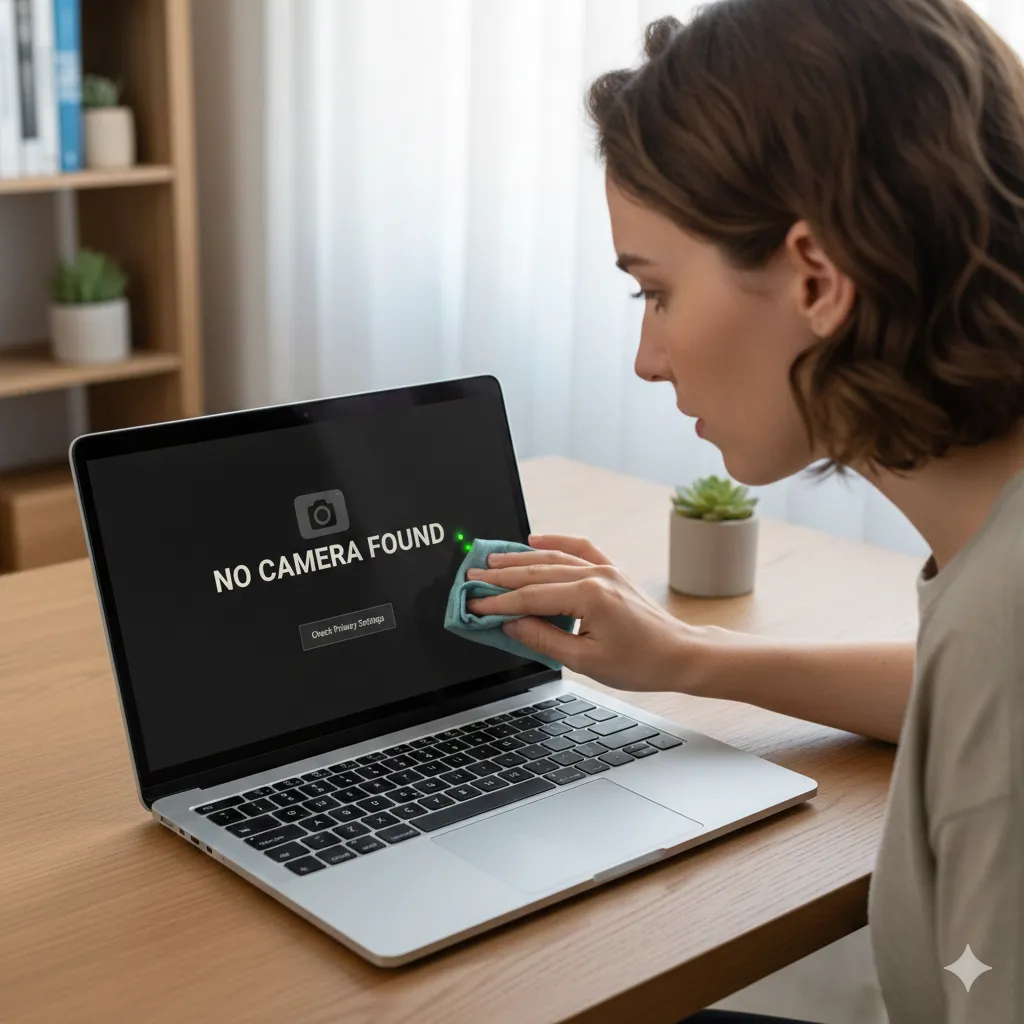
Laptop Webcam Not Working? How to Fix Video Glitches and Camera Privacy Settings
We’ve all been there: you’re two minutes away from an important Zoom interview or a catch-up with family, and suddenly, your screen is a black void or a glitchy mess of pixels. In 2025, a working webcam isn't just a luxury; it’s a professional necessity. Whether you are dealing with a "Camera Not Found" error, a physical shutter that won't budge, or annoying flickering, the fix is usually simpler than you think.
As a tech specialist at Techy Charlestown with years of experience in hardware diagnostics and software troubleshooting, I’ve seen every possible camera failure. In this guide, I’ll walk you through the exact steps our technicians use to revive dead webcams. While most issues are software-related—meaning you can fix them at home—some indicate a hardware failure that requires professional help. If you find yourself in the latter camp, you can always get an instant quote for a repair or contact us directly.
Section 1: The Fast-Track Checklist (The "Duh" Moments)
Before we dive into the deep technical stuff, let’s rule out the simple things. You’d be surprised how many "broken" cameras are just shy.
Check the Physical Shutter: Most modern laptops from Lenovo, HP, and Dell now include a tiny sliding plastic cover for privacy. If your screen is black but the camera "on" light is glowing, slide that shutter open!
The Function Keys (Fn): Look at your keyboard’s top row (F1–F12). Many laptops have a camera icon. Pressing Fn + that key (e.g., Fn + F6) can hardware-disable the camera at the system level.
The "One App at a Time" Rule: Webcams are monogamous. If Chrome is using your camera for a Google Meet, Zoom won't be able to access it. Close all background apps to free up the hardware.
Expert Tip: If you've recently dropped your laptop, the internal ribbon cable connecting the camera to the motherboard might have wiggled loose. If the software says "No Camera Attached," this is a likely culprit. For hardware inspections, visit our repair page.
Section 2: Fixing Video Glitches and Flickering
If your camera works but looks like a 1990s VHS tape, you’re dealing with interference or "flicker."
Why Is My Webcam Flickering?
Flickering is often caused by a mismatch between your camera's frame rate and the frequency of the lights in your room. Most of the world uses 50Hz or 60Hz power. If your camera is trying to capture at a frequency that doesn't align with your lightbulbs, you get "banding."
The Fix (Windows): Open the Camera App > Settings > Flicker Reduction. Switch between 50Hz and 60Hz to see which one stabilizes the image.
The Fix (Mac): macOS usually handles this automatically, but if it persists, try increasing the ambient light or using a dedicated webcam app like Logi Tune to manually set the frequency.
Dealing with Grainy or Blurry Video
If the image is blurry, it’s usually one of two things:
Dirt: Use a microfiber cloth to wipe the lens. Fingerprint oil is the #1 cause of "dreamy" or "soft" focus.
Low Light: Tiny laptop sensors hate the dark. They "gain up" the signal to see in the dark, which creates digital noise (grain). Move toward a window or turn on a desk lamp.
Section 3: Deep Dive into Privacy Settings (Windows 11 & macOS)
Sometimes your camera is perfectly healthy, but your operating system is acting as a gatekeeper.
Windows 11 Privacy Permissions
Since the 2024-2025 updates, Windows has tightened "App Permissions."
Go to Settings > Privacy & Security > Camera.
Ensure Camera Access is toggled On.
Check the list of apps. If "Zoom" or "Teams" is toggled Off, they will never see your video feed.
Important: Scroll down to "Let desktop apps access your camera." This must be On for most non-Microsoft Store apps.
macOS Permissions
Apple is even stricter.
Click the Apple Menu > System Settings > Privacy & Security > Camera.
Toggle the switch for your specific browser or video app.
If the app doesn't appear in the list, you may need to reinstall it to trigger the permission prompt again.
Section 4: Advanced Software Fixes (Drivers & Updates)
If the camera still isn't detected, it’s time to talk to the drivers. According to Microsoft Support, driver corruption is the leading cause of "code 43" or "code 19" errors in Device Manager.
How to Reinstall Camera Drivers (Windows)
Right-click the Start button and select Device Manager.
Expand Cameras (or Imaging devices).
Right-click your webcam (e.g., "Integrated Webcam") and select Uninstall device.
Do not check "Delete driver software." Just click Uninstall.
Restart your laptop. Windows will automatically "see" the hardware and reinstall a fresh copy of the driver.
Checking for Manufacturer Updates
Generic Windows drivers are okay, but specific drivers from the manufacturer are better. If you have an Asus, Lenovo, or Dell, go to their official support site, enter your Serial Number, and download the latest "Chipset" and "Camera" drivers.
Section 5: When Is It Time to Give Up and Upgrade?
Let’s be honest: built-in laptop webcams are rarely great. Most are 720p sensors that haven't changed much in five years. If you’ve tried every fix and it’s still glitching, or if you just want to look more professional, consider these options:
Buy an External Webcam: A 1080p or 4K USB webcam will always outperform a built-in one. You can find high-quality options at our online store.
Hardware Repair: If you love your laptop but the internal camera is physically broken (cracked lens or dead sensor), we can replace the module for you. Check our locations to find the nearest Techy Charlestown shop.
Trade-In: If your laptop is old and multiple components are failing, it might be time to sell your device and put the credit toward a newer model with a better sensor.
Summary and Final Thoughts
A non-working webcam is usually a software permission issue or a driver glitch. By checking your physical privacy shutter, toggling your OS privacy settings, and refreshing your drivers in Device Manager, you can solve 90% of issues.
However, if you see physical damage or if your "Imaging Devices" list is completely empty even after a restart, you likely have a hardware disconnection. Don't poke around inside the screen bezel yourself—the glass is fragile!
For more tech tips and professional repair services, visit Techy Charlestown or learn more about our team.
FAQs
Q: Why does my camera work in the Windows Camera app but not in Zoom?
A: This is a permission or conflict issue. Ensure Zoom has permission in your Privacy Settings and that the Camera app is closed before opening Zoom.
Q: Can a virus disable my webcam?
A: Yes. Some malware can disable or even hijack your camera. Always keep your antivirus updated. For more security advice, visit our contact page to talk to a specialist.
Q: My camera light is on, but the screen is black. Am I being hacked?
A: Not necessarily. This often happens when an app "reserves" the camera but fails to pull the video stream. Close all apps and restart. If it persists, check your privacy shutter!
Disclaimers
The information provided in this post is for educational and informational purposes only. While we strive for accuracy, Techy Charlestown is not responsible for any damage caused by attempted DIY repairs. If your device is under warranty, please consult the manufacturer before opening the chassis.


