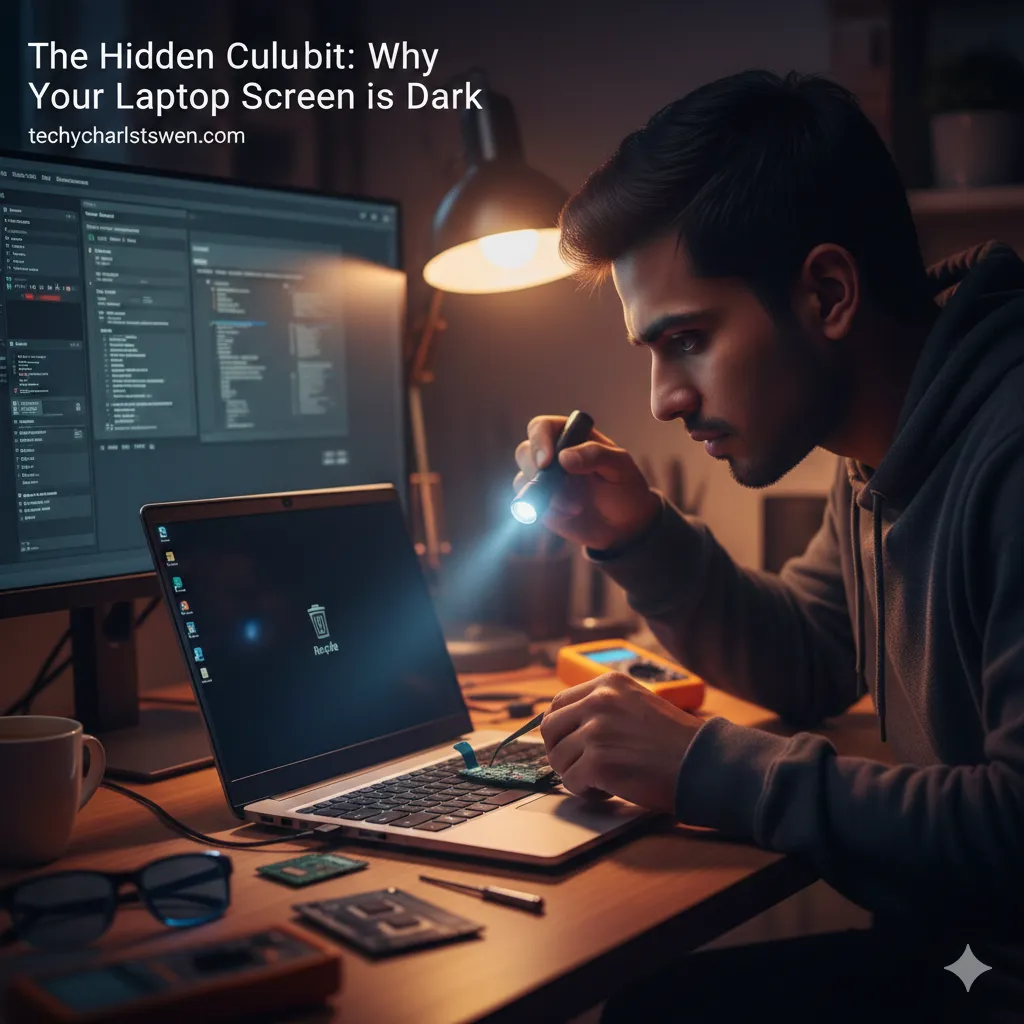
The Hidden Culprit: Why Your Laptop Screen is Dark (Even When the Power is On)
There is nothing more frustrating than hearing your laptop's fan whirring, seeing the power light glow, and hearing the familiar chime of a Windows or Mac startup—only to be met with a void. A black screen doesn’t always mean your computer is dead; often, it’s just "blind."
Whether you’re a student finishing a thesis or a professional prepping for a meeting, a dark screen is a high-stakes problem. As a technician with years of hands-on experience in hardware diagnostics, I’ve seen this exact scenario hundreds of times. Most users fear the worst (a fried motherboard), but the reality is often a simple loose connection or a failed backlight. In this guide, we will troubleshoot the "Hidden Culprits" to help you decide if this is a DIY fix or if it’s time to contact a professional.
Section 1: Identifying the Symptoms (Topic Overview)
When a laptop screen goes dark while the power is on, we categorize the failure into three main areas: Display, Power, or Logic.
According to industry data from hardware repair benchmarks, nearly 40% of display issues are related to the LCD backlight or the LVDS cable rather than the screen panel itself. Understanding the "why" requires a bit of detective work.
Common Scenarios:
The Flashlight Test: If you hold a bright light to the screen and can see faint images of your desktop, your Inverter or Backlight has failed.
The External Monitor Test: If you plug into a TV via HDMI and see your desktop there, your Graphics Card (GPU) is fine, but your laptop's internal display hardware is disconnected or broken.
Note: While a dark screen is a technical issue, it can have financial implications if you're forced to buy new equipment unnecessarily. Always seek a repair quote before assuming the device is "e-waste."
Section 2: The Hidden Culprits – A Deep Dive
To fix the problem, we have to peel back the layers of how a laptop functions.
Sub-section 1: The Backlight and Inverter Failure
Most modern laptops use LED-backlit LCDs. If the tiny lights behind the screen fail, the crystals still turn on and move, but there is no light to "push" the image to your eyes.
The Fix: This usually requires a full screen replacement or an inverter board swap.
Expert Insight: Be careful with "flickering" before the blackness. Flickering is a warning sign that your backlight is drawing irregular voltage.
Sub-section 2: RAM Seating and Static Discharge
Sometimes the screen is black because the computer hasn't actually finished "POSTing" (Power-On Self-Test). A tiny bit of static electricity trapped in the capacitors or a loose stick of RAM can prevent the screen from getting a signal.
The "Hard Reset" Trick: Unplug the power, remove the battery (if possible), and hold the power button for 60 seconds. This drains the "flea power" and often brings a "dead" screen back to life.
Sub-section 3: The Hall Effect Sensor (The "Lid" Problem)
Your laptop has a small magnetic sensor that tells it when the lid is closed so it can turn off the screen. If this sensor gets stuck or "thinks" the lid is closed (sometimes caused by placing a phone or a magnet near the palm rest), the screen will stay dark.
Section 3: Actionable Troubleshooting Steps
Before you give up, follow this professional checklist:
Check Your Brightness Keys: It sounds silly, but ensure you haven't accidentally toggled the brightness to zero or switched to "External Display Only" mode (usually Fn + F4 or F8).
The HDMI Bypass: Connect your laptop to a monitor. If the monitor works, your Windows/OS is fine. If the monitor is also black, you likely have a Motherboard or GPU failure.
Reseat the Memory: If you are comfortable opening your device, remove the RAM sticks and click them back in firmly.
Listen for Beep Codes: If your laptop beeps in a specific pattern, it’s "talking" to you. For example, Dell's support site provides charts that translate these beeps into specific hardware failures.
When to consult a professional: If the "Flashlight Test" confirms an image but no light, or if your laptop emits a burning smell, stop immediately. Attempting to repair internal high-voltage components without experience can lead to further damage. You can always repair a device with our certified team to ensure it's done safely.
Section 4: Conclusion and Final Thoughts
A black screen is a symptom, not a death sentence. By systematically checking the backlight, testing with external monitors, and performing a hard reset, you can often save hundreds of dollars in unnecessary replacements.
Always remember to back up your data regularly. If your screen is dark and you can't access your files, don't panic—your data is likely still safe on the hard drive. If you decide the repair cost outweighs the value of the machine, you can always sell your device for parts or trade up to a newer model by buying a refurbished device from a reputable source.
FAQs
Q1: Can a software update cause a black screen?
A1: Yes. Specifically, corrupted Graphics Drivers. If you can see the BIOS logo (like the HP or Dell logo) when you first turn it on, but it goes black when Windows starts, it is a software/driver issue that can be fixed in "Safe Mode."
Q2: Is it worth fixing a screen on an older laptop?
A2: Generally, if the repair cost is less than 50% of the cost of a comparable new laptop, repair is the sustainable and financial choice. Check our locations to find a shop near you for an estimate.
Disclaimer
The information provided in this post is for educational purposes only. Opening your laptop may void your warranty. Techy Charlestown is not responsible for damages resulting from DIY repair attempts. Always consult a professional for hardware issues.


