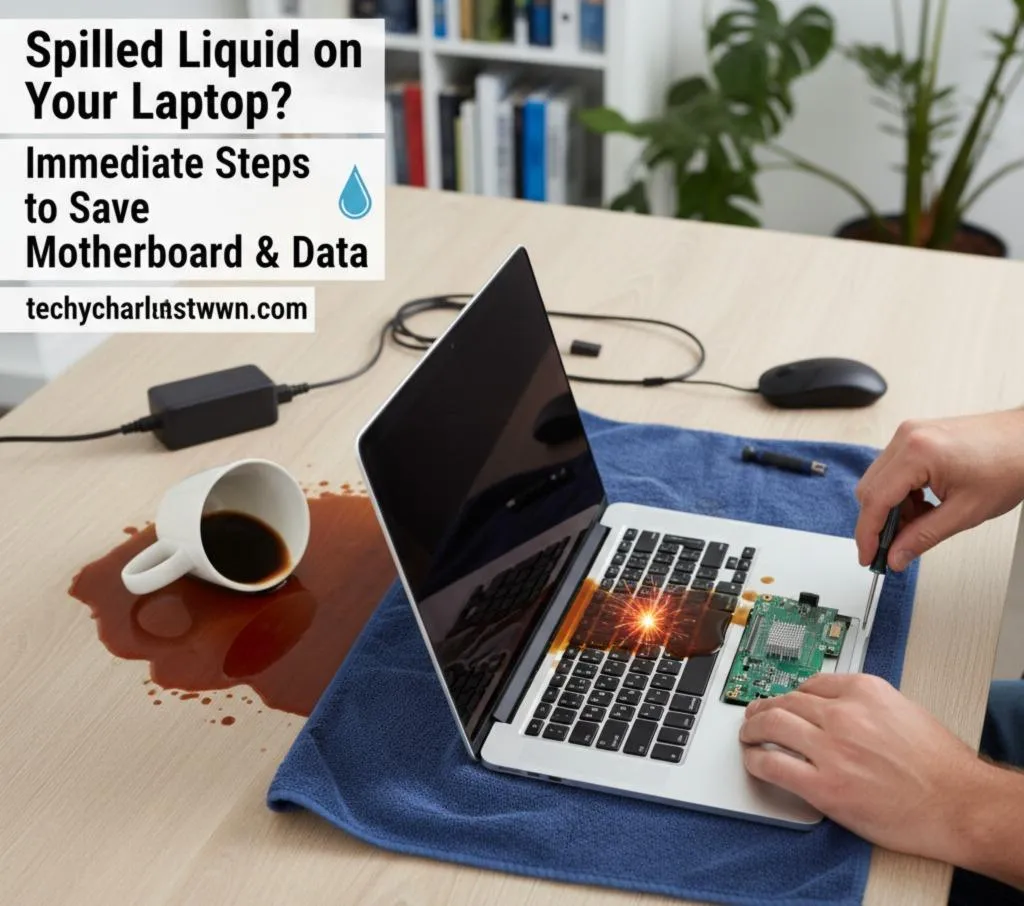
Spilled Liquid on Your Laptop? Immediate Steps to Save Your Motherboard & Data
It happens in slow motion. You reach for your coffee, your elbow bumps the mug, and suddenly your keyboard is swimming in a pool of latte. That sinking feeling in your stomach is universal. Whether you are a student finishing a thesis or a professional finalizing a report, liquid damage is one of the most terrifying issues a laptop owner faces.
But here is the good news: Liquid damage is not always a death sentence for your device.
However, the difference between a simple cleanup and a totally fried motherboard usually comes down to what you do in the first 60 seconds after the spill. As the team behind Techy Charlestown, we have seen thousands of liquid-damaged devices. We know exactly which home remedies work, which ones (like rice) destroy your computer, and when it’s time to call in the professionals.
In this guide, we are going to walk you through the immediate emergency steps, the science of corrosion, and how to decide if your device is worth saving.
Disclaimer: This guide involves handling electronic components and electricity. If you are uncomfortable opening your device, stop immediately and contact a professional.
Section 1: The Golden Minute – Immediate Emergency Steps
If the spill just happened, stop reading this introduction and follow these steps immediately. Speed is the only thing that matters right now.
1. Kill the Power (Do Not Hesitate)
Do not take the time to save your Word document. Do not shut down via the Windows Start menu or macOS Apple menu.
Press and hold the power button for 5-10 full seconds until the screen goes black and the fans stop whirring.
Every second electricity flows through a wet circuit board, it accelerates electrolysis (shorting) and corrosion.
2. Unplug Everything
Remove the AC adapter/charger immediately. If electricity is the fuel for the fire that is liquid damage, the charger is a tanker truck.
Unplug the power cord.
Unplug any USB drives, mice, dongles, or external monitors. You don’t want the short circuit to travel to your expensive peripherals.
3. The "Tent" Method
If your laptop has a non-removable battery (which most modern MacBooks and Ultrabooks do), gravity is your best friend.
Open the laptop as far as it will go.
Flip it upside down so it looks like a tent (an inverted "V").
Place it on a towel on a flat surface. This directs the liquid away from the delicate motherboard and back out through the keyboard.
4. Remove the Battery (If Possible)
If you have an older model or a specific gaming laptop with a removable battery:
Flip the laptop over, unlock the latches, and pull the battery out.
If you are tech-savvy and have the right screwdrivers (Torx or Pentalobe), you can remove the back case to disconnect the internal battery connector. Only do this if you know what you are doing.
Pro Tip: Do not try to turn the laptop back on to "check if it works" 10 minutes later. This is the https://www.google.com/search?q=%231 mistake that kills laptops. Even if it boots, the liquid is still inside, eating away at the copper traces.
Section 2: The Science of Liquid Damage (Why Water Kills Electronics)
To understand why you need to seek device repair, you need to understand what is happening internally. It isn't just the water that is the problem; it is the impurities within it.
Electrolysis and Short Circuits
Water conducts electricity because of the ions dissolved in it. When that conductive liquid bridges two points on a motherboard that shouldn't be connected (like a 19-volt power rail and a delicate data line), it creates a short circuit. This can instantly blow capacitors, chips, and fuses.
The Silent Killer: Corrosion
Even if your laptop dries out and turns on, the danger isn't over. When liquid meets metal and electricity, a chemical reaction occurs called oxidation or corrosion.
The Green Gunk: You might see green or white powdery residue on the motherboard. This is copper oxide.
The Time Bomb: Corrosion eats through the copper pathways (traces) on the board. Your laptop might work for a week, and then suddenly die completely because a trace finally severed.
Sticky Sugars
If you spilled soda, beer, or sugary coffee, the water will evaporate, but the sugar remains. This sticky residue is conductive and acidic. As the laptop heats up during normal use, that sugar can melt and move, causing new short circuits weeks after the spill.
Section 3: The "Rice Myth" – Please, Stop Doing This
If you search the internet, millions of people will tell you to put your device in a bag of uncooked rice. As experts in the industry, we are begging you: Do not use rice.
Why Rice Fails
It's too slow: Rice is a passive desiccant. It absorbs moisture from the air, but it cannot pull water out from deep inside a laptop chassis.
It creates dust: Rice is covered in starch dust. When you dump your laptop in a bag of rice, that dust gets into the charging ports, the fans, and the keyboard switches.
It provides false hope: While the laptop sits in rice for 48 hours, the liquid inside is corroding the motherboard. You are wasting valuable time that could be spent on professional cleaning.
What to use instead:
Air Circulation: A fan blowing over (not directly into) the device is better than a sealed bag.
Silica Gel: If you must use a desiccant, silica gel packets are cleaner and more effective than rice, though professional drying is still superior.
Section 4: Detailed Cleanup Guide (DIY vs. Professional)
Once the immediate panic is over, you have a decision to make. Can you clean this yourself, or do you need to visit one of our Techy Charlestown locations?
The DIY Approach (High Risk)
If you are comfortable with electronics and the spill was minor (e.g., a splash of water on the trackpad), you might be able to clean it.
Wait: Let the device dry in the tent position for at least 48 hours.
Surface Clean: Use 99% Isopropyl Alcohol (do not use standard 70% rubbing alcohol, as it contains too much water) to wipe down the keys and casing.
Test: Power on. If keys are sticky or the trackpad is erratic, the liquid has penetrated the membrane.
The Professional Approach (Recommended)
For spills involving soda, coffee, wine, or significant amounts of water, professional ultrasonic cleaning is the standard.
Disassembly: We remove the motherboard entirely from the chassis.
Ultrasonic Bath: The motherboard is placed in a chemical bath that uses high-frequency sound waves to blast corrosion and sugar off the microscopic components.
Micro-Soldering: If a component was burned out by the initial splash, we use microscopes and soldering irons to replace individual chips rather than replacing the whole board.
Section 5: Data Recovery – Saving What Matters Most
For many users, the laptop itself matters less than the photos, documents, and work stored on the hard drive.
SSDs and Liquid Damage
Modern laptops use SSDs (Solid State Drives). Many of these are soldered directly onto the motherboard (especially in Apple devices), while others are removable sticks (M.2 drives).
Removable Drives: If your motherboard is dead, we can often pull the M.2 drive out, put it in an external enclosure, and read your data.
Soldered Drives: If the drive is soldered on, the motherboard must be repaired to a booting state to get the data off. This is a specialized service known as board-level repair.
If you are worried about your files, contact us immediately. Attempting to power on a wet board can send a voltage spike to the storage chips, wiping your data permanently.
Section 6: Assessing the Cost – Repair vs. Replace
Is it worth fixing? This is the most common question we get. It depends on the age of the device and the extent of the damage.
When to Repair
High-End Laptops: If you have a MacBook Pro or a high-end gaming laptop less than 4 years old, repair is almost always cheaper than replacement.
Data Importance: If you need the data and have no backup, repair is mandatory.
Simple Keyboards: If the liquid only hit the keyboard and didn't touch the motherboard, a top-case replacement is very affordable.
When to Replace
Budget Laptops: If you have a $300 Chromebook and the repair estimate is $200, it makes more sense to buy a device that is new and comes with a warranty.
Catastrophic Damage: If the liquid reached the screen layers (causing water spots inside the display) AND the motherboard, the cost of parts may exceed the laptop's value.
Converting Trash to Cash
Even if your laptop is too expensive to fix, it isn't worthless. Parts like the screen, battery, or casing might still be good. You can sell your device to us. We buy damaged electronics for parts/refurbishing, giving you cash to put toward a new machine.
Section 7: Future-Proofing Your Setup
Once you have recovered from this disaster, take steps to ensure it never happens again.
Keyboard Covers: For less than $10, a silicone keyboard cover can seal the gaps between your keys. It might change the typing feel slightly, but it makes the laptop significantly more water-resistant.
Elevate Your Drink: Never put your drink on the same surface as your laptop. Use a separate side table or a clip-on cup holder that sits lower than the desk surface.
Cloud Backup: Liquid damage can happen instantly. Ensure your data is backing up to Google Drive, iCloud, or OneDrive automatically so you never lose files even if the hardware is destroyed.
Section 9: Conclusion
Spilling liquid on your laptop is a nightmare, but if you act fast, keep a cool head, and avoid the bag of rice, you have a fighting chance. Remember, the damage usually isn't instant—it's the corrosion over the following days that does the real harm.
If you are unsure about the extent of the damage, don't gamble with your expensive equipment. Bring it to Techy Charlestown. Our diagnostics are thorough, our technicians are certified, and we are dedicated to saving your tech life.
Whether you need to repair a device, recover lost data, or just want to ask a question, we are here to help.
FAQs
Q1: How much does it cost to fix a water-damaged laptop? A1: The cost varies wildly depending on the model and damage. A simple ultrasonic cleaning might cost $100-$150, while replacing a MacBook logic board can range from $300 to $800. We recommend bringing it in for a diagnostic quote first.
Q2: Can I use a hair dryer to dry my laptop? A2: No. Hair dryers can generate enough heat to melt plastic keys and warp sensitive internal components. Additionally, the strong airflow can push liquid deeper into the machine. Use a standard room fan instead.
Q3: My laptop works fine after a spill. Do I still need to clean it? A3: Yes. Liquid leaves behind minerals and sugars that cause corrosion over time. Your laptop might work today but fail next month. A professional cleaning removes these residues to prevent future failure.
Q4: Does the warranty cover water damage? A4: Generally, no. Standard manufacturer warranties (AppleCare, Dell Limited Warranty) do not cover accidental liquid damage. However, if you purchased "Accidental Damage Protection" (like AppleCare+), the repair cost will be significantly lower (usually a deductible).
Disclaimer (YMYL)
The information provided in this blog post is for educational and informational purposes only. While we are professional technicians, attempting DIY repairs on electronic devices carries inherent risks, including electrical shock, battery puncture, and further data loss. Techy Charlestown is not responsible for damage incurred during self-repair attempts. For critical data recovery or high-value hardware, please consult a professional technician.


