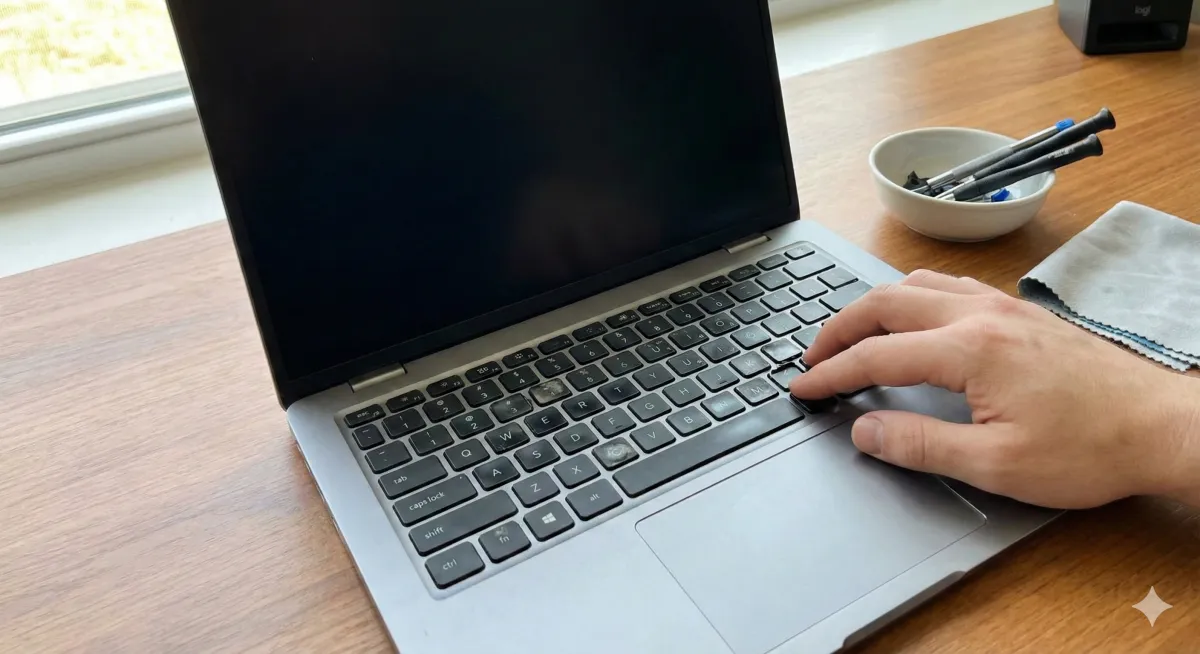
Laptop Keys Not Working? How to Fix Sticky Keys vs. Dead Keyboards
We have all been there. You are typing out an important email, finishing a term paper, or in the middle of a gaming session, and suddenly—nothing. You hit the spacebar, and the cursor doesn't move. Or perhaps the "E" key decides it wants to stick, typing "EEEEEEE" across your screen like a ghost is haunting your laptop.
A malfunctioning keyboard isn’t just an annoyance; it is a productivity killer. But before you start shopping for a new laptop, take a deep breath. In my years of experience repairing tech, I’ve found that a large percentage of keyboard issues are solvable at home with a little patience and the right know-how.
Whether you are dealing with a single sticky key caused by a soda spill or a completely unresponsive board, this guide will walk you through the troubleshooting process. We will look at software glitches, physical blockages, and hardware failures, helping you decide if this is a DIY fix or if you need to contact a pro.
Disclaimer: This guide involves hardware troubleshooting. While many steps are safe, opening a laptop can void warranties or cause damage if done incorrectly. Proceed with caution.
Section 1: The Diagnosis – Is it Hardware or Software?
Before you grab a screwdriver or a can of compressed air, we need to figure out if the problem is physical (hardware) or digital (software).
The "One Key" vs. "Whole Board" Test
If your entire keyboard is unresponsive, the issue is likely a driver conflict, a loose internal ribbon cable, or a motherboard issue. If it is just one or two specific keys, you are usually looking at dirt, debris, or a broken switch mechanism.
The BIOS Check
This is the ultimate truth test. Restart your computer and enter the BIOS menu (usually by tapping F2, F10, or Delete during startup). The BIOS runs independently of Windows or macOS.
If the keyboard works in the BIOS: Your hardware is fine! The problem is within your operating system (Windows/macOS).
If the keyboard doesn't work in the BIOS: You have a hardware failure. You likely need to repair a device physically.
Section 2: Software Solutions (Try These First)
If you suspect the issue is software-related, try these fixes before attempting any physical cleaning.
1. Update or Reinstall Keyboard Drivers
Sometimes, your computer simply "forgets" how to talk to the keyboard.
Right-click the Start button and select Device Manager.
Scroll down to Keyboards and expand the list.
Right-click your keyboard (often called "Standard PS/2 Keyboard") and select Uninstall device.
Restart your laptop. Windows will automatically reinstall the driver upon reboot.
2. Check "Filter Keys" Settings
I have seen countless customers come into our locations thinking their keyboard is broken, only to find that a Windows accessibility setting was toggled on by mistake.
Go to Settings > Accessibility > Keyboard.
Ensure Filter Keys is turned OFF. This feature ignores brief or repeated keystrokes, which can make the keyboard feel "dead" to a fast typist.
Section 3: Fixing the "Sticky" Key (Physical Cleaning)
If a specific key feels mushy, crunchy, or sticks down when pressed, you are likely dealing with crumbs, dust, or dried liquid residue.
The "Shake and Spray" Method
This is the safest first step.
Turn off the laptop and unplug it.
Flip the laptop upside down and give it a gentle shake and tap. You will be surprised (and disgusted) by how many crumbs fall out.
Use a can of compressed air. Hold the can at a 75-degree angle and spray in a zigzag pattern across the keys to dislodge debris.
Deep Cleaning with Isopropyl Alcohol
If the key is sticky due to a sugary spill (soda or coffee), air won't fix it.
Dip a cotton swab in high-percentage (90%+) Isopropyl Alcohol.
Gently clean around the edges of the stuck key. The alcohol helps dissolve the sticky residue and evaporates quickly without damaging electronics.
Note: If the key is still physically stuck, the plastic scissor mechanism underneath might be broken. Replacing a single keycap is tricky. If you aren't comfortable prying off delicate plastic clips, we recommend bringing it in for a check-up.
Section 4: The "Dead" Keyboard (Hardware Failure)
If you have spilled a significant amount of liquid, or if the keyboard stopped working after a drop, the damage might be internal.
The Ribbon Cable
Laptop keyboards connect to the motherboard via a thin, flat ribbon cable. Over time, or after a drop, this connection can wiggle loose.
The Fix: This requires opening the laptop case. If you are tech-savvy, you can locate the connector, unlock the latch, reseat the cable, and lock it back down.
The Risk: If you tear this cable or damage the connector on the motherboard, the repair becomes much more expensive.
Liquid Damage (The Silent Killer)
If you spilled water on your laptop last week and it seemed fine, but now the keys are failing, corrosion has likely set in.
What to do: Stop using it immediately. Electricity accelerates corrosion.
What NOT to do: Do not put it in rice. This is a myth that slows down the drying process and introduces starch dust into the device.
Instead, consult a professional immediately for a chemical cleaning.
Section 5: Workarounds and Alternatives
If you can't fix the keyboard immediately but have a deadline to meet, here are your emergency options:
External USB Keyboard: Plug in any cheap USB keyboard. It’s not portable, but it will get the job done.
On-Screen Keyboard: Go to Accessibility settings and turn on the On-Screen Keyboard to click-type with your mouse.
Remapping Keys: If only one key is broken (like the Shift key), you can use software like SharpKeys to remap a rarely used key (like Caps Lock) to function as Shift.
Section 6: When is it Time to Upgrade?
Sometimes, a keyboard failure is a symptom of an aging machine. If your laptop is over 5 years old and requires a full top-case replacement (which can be costly), you might want to consider the economics.
Does it make sense to spend $150 repairing a laptop worth $200? In these cases, you might look to sell a device for parts and put that cash toward a newer model. We also offer options to buy a device that is certified and tested, saving you the headache of future repairs.
Section 7: Conclusion
A broken keyboard feels like a disaster, but it is usually a manageable problem. Start with the software checks—restarting and checking drivers costs nothing but time. If it is a hardware issue like sticky residue or a loose cable, careful cleaning or a quick reseat might save the day.
However, laptops are delicate ecosystems. If you are unsure about opening your device, or if the damage involves significant liquid spills, don't risk making it worse.
At Techy Charlestown, we handle everything from single-key replacements to full motherboard diagnostics. We are here to get you back to typing at full speed. Check out our About page to learn more about our team, or stop by one of our shops today.
FAQs
Q1: Can I replace just one key on my laptop?
A1: It depends on the laptop model. On many modern laptops (like MacBooks or ultra-thin Windows laptops), the keyboard is riveted into the top case, making individual key replacement difficult or impossible. However, on some older or gaming models, individual keycaps and scissor switches can be swapped.
Q2: How much does it cost to fix a laptop keyboard?
A2: Costs vary wildly. A simple cleaning might be inexpensive. However, if the keyboard is integrated into the palm rest (common in modern laptops), the part itself can be pricey, and the labor involves disassembling the entire machine. Contact us for a specific quote.
Q3: I spilled water on my keyboard. What do I do?
A3: Turn it off immediately! Do not try to "test" it. Unplug the power adapter and battery (if removable). Turn the laptop upside down (tent shape) to let gravity drain the fluid away from the motherboard. Bring it to a repair shop as soon as possible for internal cleaning.
Disclaimer
The information provided in this post is for educational purposes only. Laptop repair involves working with delicate electronic components. Techy Charlestown is not responsible for any damage caused by DIY repair attempts. If you are unsure about a procedure, please consult a professional technician.


