How to Fix Laptop Speakers That Have No Sound or Crackling Audio
There is nothing more frustrating than settling in for a Zoom meeting or a Netflix session only to realize your laptop speakers are silent or, worse, emitting a distorted, crackling mess. As tech specialists at Techy Charlestown, we see hundreds of devices every month with these exact symptoms. Whether it’s a software glitch after a Windows update or a physical hardware failure, audio issues can bring your productivity to a grinding halt.
In this comprehensive guide, we are going to walk you through every possible fix—from the "oops, I forgot the mute button" scenarios to advanced registry edits and hardware diagnostics. Because laptop audio involves both complex software drivers and delicate physical components, it falls under a technical category where professional precision saves you from costly mistakes.
Section 1: Understanding the Root Causes of Audio Failure
Before we dive into the "how-to," we need to understand the "why." Audio issues generally fall into two categories: Software/Firmware and Hardware.
Software Conflicts
Most modern laptops use High Definition Audio controllers. According to technical documentation from Microsoft Support, driver corruption is the leading cause of "No Audio Output Device is Installed" errors. This often happens when an operating system update doesn't align perfectly with the manufacturer's audio driver.
Hardware Wear and Tear
Crackling sounds are often physical. Over time, the thin diaphragm inside your laptop's tiny speakers can tear, or dust and debris can settle on the cone. If you’ve ever spilled liquid near your keyboard, the speaker grilles are often the first point of entry for corrosion.
Note: If your laptop has suffered a major spill or drop, software fixes likely won't work. You may need to repair a device with professional help.
Section 2: Step-by-Step Troubleshooting (The Software Fixes)
1. The "Quick Wins" Check
Before getting technical, let’s rule out the basics:
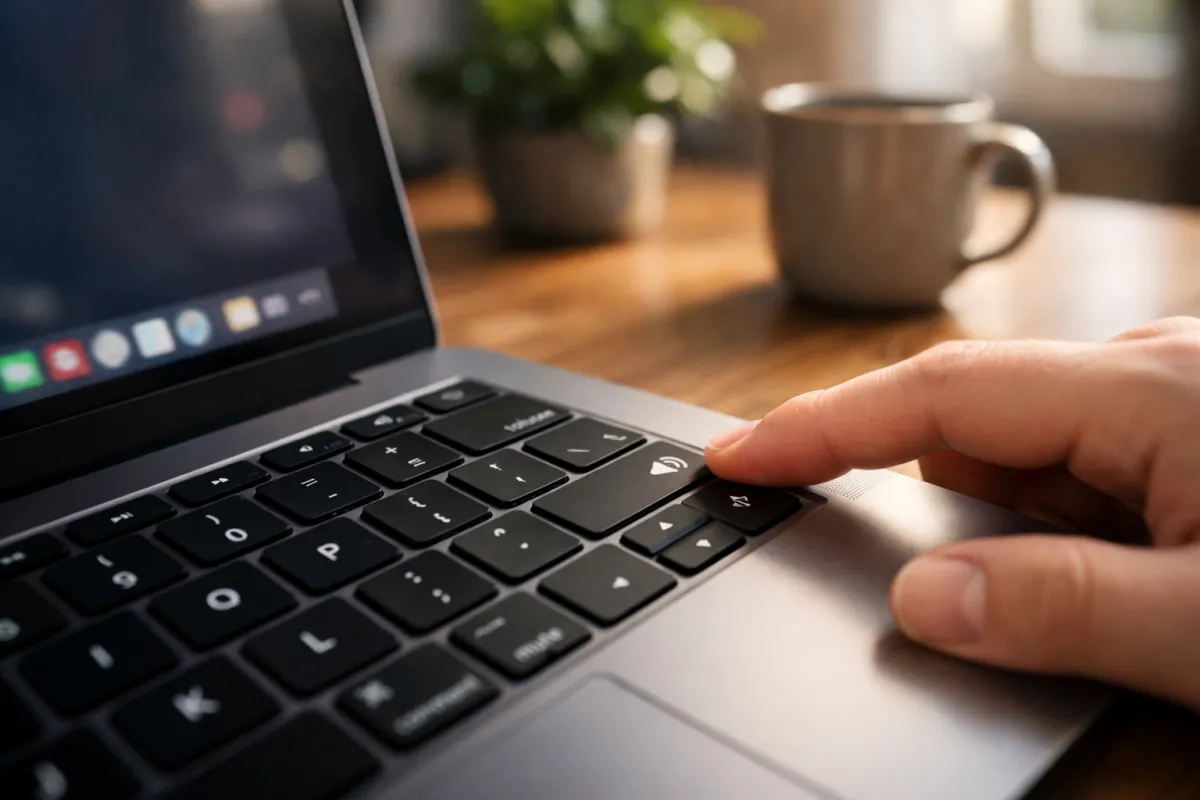
Physical Mute Keys: Check your F-keys (usually F1-F12). Does one have a speaker icon with a slash through it?
Playback Device: Right-click the volume icon in your taskbar. Ensure "Speakers" is selected, not a Bluetooth headset you forgot was turned on in the other room.
2. Running the Audio Troubleshooter
Windows has a built-in diagnostic tool that is surprisingly effective for 2026 systems.
Go to Settings > System > Troubleshoot.
Select Other troubleshooters and run the Audio tool.
Follow the prompts to let Windows reset the audio service.
3. Driver Management (The Most Common Fix)
If your audio is crackling, your bit rate might be mismatched, or the driver is outdated.
Update: Open Device Manager, expand "Sound, video and game controllers," right-click your audio driver (Realtek, Intel, etc.), and select Update Driver.
Roll Back: If the issue started after an update, use the Properties menu in Device Manager to "Roll Back Driver."
Section 3: Fixing Crackling or Distorted Sound
Crackling is usually a sign of Audio Enhancement interference or Interrupted Deferrable Procedure Calls (DPC) latency.
Disable Audio Enhancements
Many manufacturers (like Dolby or WavesMaxx) add software layers to make tiny speakers sound bigger. Sometimes, these layers crash.
Go to Control Panel > Sound.
Right-click your Speakers > Properties.
Navigate to the Enhancements tab and check Disable all enhancements.
Change the Sample Rate
If the CPU is struggling to process high-fidelity audio, you’ll hear pops and clicks. Try lowering the quality to "CD Quality" (16-bit, 44100 Hz) in the Advanced tab of your Speaker Properties.
Section 4: Hardware Diagnostics and Physical Care
If you've reinstalled Windows and the sound is still buzzing, the problem is physical.
Cleaning the Grilles
Dust is a silent killer. Use a can of compressed air to gently blow out the speaker openings. Do not stick needles or paperclips into the holes, as you will puncture the speaker membrane.
Testing with Headphones
This is the ultimate "litmus test."
Sound is perfect in headphones: Your laptop speakers are blown and need replacement.
Sound is still crackling in headphones: The issue is your internal sound card or software.
If it turns out your hardware is failing, it might be time to sell a device and upgrade, or check our locations to drop it off for a component swap.
Section 5: Practical Advice & When to Seek Help
Fixing a laptop yourself can be rewarding, but laptops are increasingly "un-repairable" for the average user due to soldered components and heavy adhesives.
When to stop DIY-ing:
Smell of Burning: If you smell ozone or plastic, shut down immediately. This is a short circuit.
No Sound After BIOS Update: This could be a motherboard failure.
Visible Corrosion: If you see green or white crust near the speakers.
For more information on the technical specifications of laptop audio, you can consult the Audio Engineering Society (AES) for standards on digital-to-analog conversion.
Conclusion
Most laptop audio issues are solved by a simple driver refresh or a setting adjustment. However, if you've tried the steps above and are still met with silence, don't risk damaging your motherboard by prying the case open yourself.
At Techy Charlestown, we specialize in delicate hardware surgery. We can source OEM speakers and get your laptop sounding brand new in no time. About us – we’ve been serving the community with transparent, expert repairs for years.
FAQs
Q: Why does my audio only crackle when the charger is plugged in?
A: This is often "ground loop noise" or EMI (Electromagnetic Interference). It suggests a faulty power brick or poor grounding in your home's electrical outlets.
Q: Can a virus cause my sound to stop working?
A: While rare, some malware can disable system services. Always run a scan if your settings keep changing back to "Muted" on their own.
Q: Is it worth fixing speakers on an old laptop?
A: Usually, yes! Speaker parts are relatively inexpensive compared to buying a new machine. Get an instant quote to see if it fits your budget.
Disclaimer: The information provided in this post is for educational purposes. Disassembling your laptop may void your warranty. Techy Charlestown is not responsible for damages resulting from DIY attempts. Always consult a professional for hardware repairs


