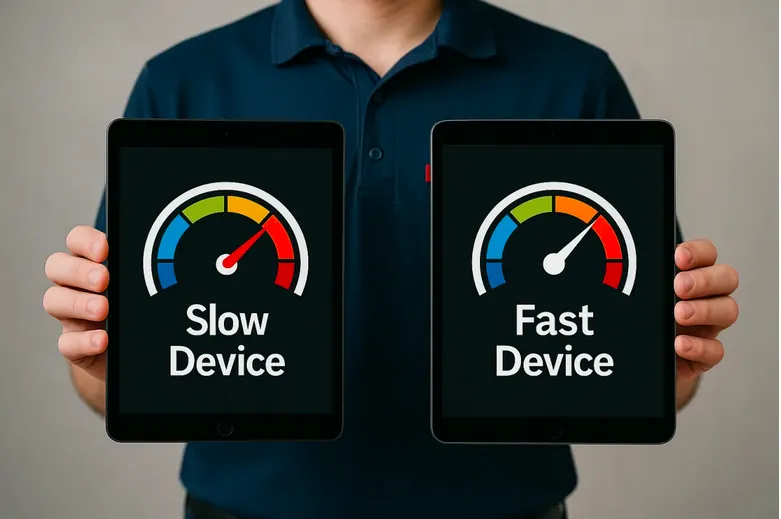
Why Your Devices Slow Down After Updates — The Hidden Side of Software Evolution | Techy Charlestown
You install a new update expecting smoother performance — but suddenly, your device feels slower. Apps take longer to load, your battery drains faster, and everything seems a bit more sluggish. What happened?
It’s a common frustration for users, especially when updates are supposed to improve functionality, not make things worse. The truth lies in how software evolution interacts with aging hardware. Every update introduces new code, security layers, and features designed for modern devices — not necessarily older ones.
At Techy Charlestown, our technicians encounter this question daily: “Why did my device slow down after the latest update?” In this guide, we’ll uncover the hidden side of updates — why they sometimes hurt performance — and what you can do to fix it without replacing your entire device.
Section 1: The Reality of Software Evolution
Technology never stands still. Software developers constantly improve systems by releasing patches, updates, and version upgrades. These updates enhance security, add new functions, and adapt to evolving hardware standards.
However, as software evolves, it grows heavier — requiring more processing power, storage, and memory. This is called software bloat, a natural consequence of technological progress.
For example, each version of an operating system often includes:
More complex graphics and animations
Additional background processes
Improved security encryption
Expanded compatibility for new apps and devices
If your hardware is several years old, it may not be optimized to handle these newer demands. This mismatch between modern software and aging hardware is one of the main causes of post-update slowdowns.
You can visit Techy Charlestown’s repair center to get your system assessed. Our team can identify if your device is struggling due to outdated hardware or inefficient software updates.
Section 2: Why Devices Slow Down After Updates
1. Heavier System Requirements
Every update introduces extra background tasks, from security scanning to visual interface upgrades. These processes consume CPU, RAM, and battery life. For an older system, that means extra strain — and slower response times.
For example, a new Windows or macOS update might increase RAM usage by 10–20%, which older systems can’t handle smoothly.
2. Storage Fragmentation and Temporary Files
Updates often leave behind cached data, duplicate libraries, or temporary installation files. Over time, these files pile up, leading to storage fragmentation — slowing down file access and app loading.
A simple system cleanup can help, but sometimes a professional diagnostic and optimization service at Techy Charlestown is needed to clear deep residual files safely.
3. Battery and Power Optimization Changes
Modern updates tweak performance to balance speed and battery efficiency. Sometimes, manufacturers intentionally slow down processing speed to preserve battery life in older models — a practice known as performance throttling.
This helps prevent overheating but also results in slower operation. If your battery drains fast or your device feels sluggish post-update, it might be a sign to replace your battery or recalibrate power settings.
You can book this service directly through Techy Charlestown’s contact page for a full energy health check.
4. Compatibility Conflicts
After major updates, older drivers or firmware can become incompatible. Outdated components like graphics cards, sound chips, or Wi-Fi adapters may not work seamlessly with the new software, causing lag and system instability.
In such cases, a simple driver update or hardware calibration can make a world of difference. Our repair specialists can help re-optimize these systems so they perform like new.
5. Data Migration and Indexing Delays
When an update is installed, your device reindexes system files, reorganizing data for better search and retrieval performance. This process runs silently in the background and can cause noticeable lag for several hours or days post-update.
This slowdown is temporary, but if it persists beyond a week, there might be an underlying performance issue that needs attention.
Section 3: How to Prevent Slowdowns After Updates
1. Free Up Storage Before Updating
Always ensure at least 20–25% of your device’s storage is free before running updates. This space allows temporary installation files to process efficiently.
2. Uninstall Unused Apps
Many apps become redundant after updates or conflict with new system functions. Deleting old software frees up valuable system resources.
3. Keep Drivers and Firmware Updated
Manually check for hardware driver updates, especially after major OS upgrades. Updated drivers improve stability and hardware compatibility.
4. Perform a System Reset (If Needed)
If slowdowns persist, a factory reset may help by clearing leftover data fragments. Before doing this, back up your files — or let Techy Charlestown handle it for you safely.
5. Upgrade Select Hardware
If your device is more than 4–5 years old, consider small hardware upgrades:
Replace HDD with SSD for faster boot times
Upgrade RAM for multitasking
Replace old batteries or power adapters
Visit Techy Charlestown’s buy-a-device section for upgrade-ready options designed to keep pace with modern software demands.
Section 4: When It’s Time to Upgrade, Not Repair
Even with maintenance, older systems eventually reach a limit. When updates start causing constant crashes or apps stop supporting your OS version, upgrading becomes unavoidable.
Here’s how to tell:
Your device no longer supports critical security updates.
Apps crash frequently despite repairs.
Components like RAM or SSDs are already maxed out.
At Techy Charlestown, we’ll guide you through choosing between repair, upgrade, or replacement based on real diagnostics — not guesswork. You can also explore trade-in options to get value back from your current system.
Conclusion
Software updates are meant to enhance your device — not slow it down. But as technology evolves, old hardware can’t always keep up with new demands. The key is recognizing the balance between maintaining performance and embracing necessary upgrades.
Whether it’s optimizing, upgrading, or replacing, Techy Charlestown has you covered with professional diagnostics and trusted advice. Keep your devices running fast, secure, and efficient with help from local experts who understand the evolving world of software and hardware integration.
FAQs
Q1: Why do phones and computers slow down right after an update?
Because updates run background indexing and optimization tasks, which temporarily consume extra resources.
Q2: Is my device being slowed down intentionally?
Sometimes — manufacturers throttle performance to preserve battery life or reduce heat, especially in older models.
Q3: How long should an update slowdown last?
Usually 1–3 days. If lag persists beyond that, schedule a repair diagnostic.
Q4: Can cleaning up storage speed up my device after updates?
Yes. Removing temporary files and unused apps improves system response and frees memory.
Q5: Should I skip updates to avoid slowdown?
No. Skipping updates leaves your device vulnerable to security threats. Instead, manage performance with proper optimization or expert help.
Disclaimer
This content is for educational and informational purposes only. Performance results vary depending on device age, model, and maintenance. Always consult a professional before performing advanced system changes.


